Statement import
Split straight from your card statement
Upload a statement from any card or bank and your transactions appear under Activity, in Transactions. Tap Split on the ones you shared and the amount, date and merchant are already filled in.
PDF, CSV or OFX from any bank
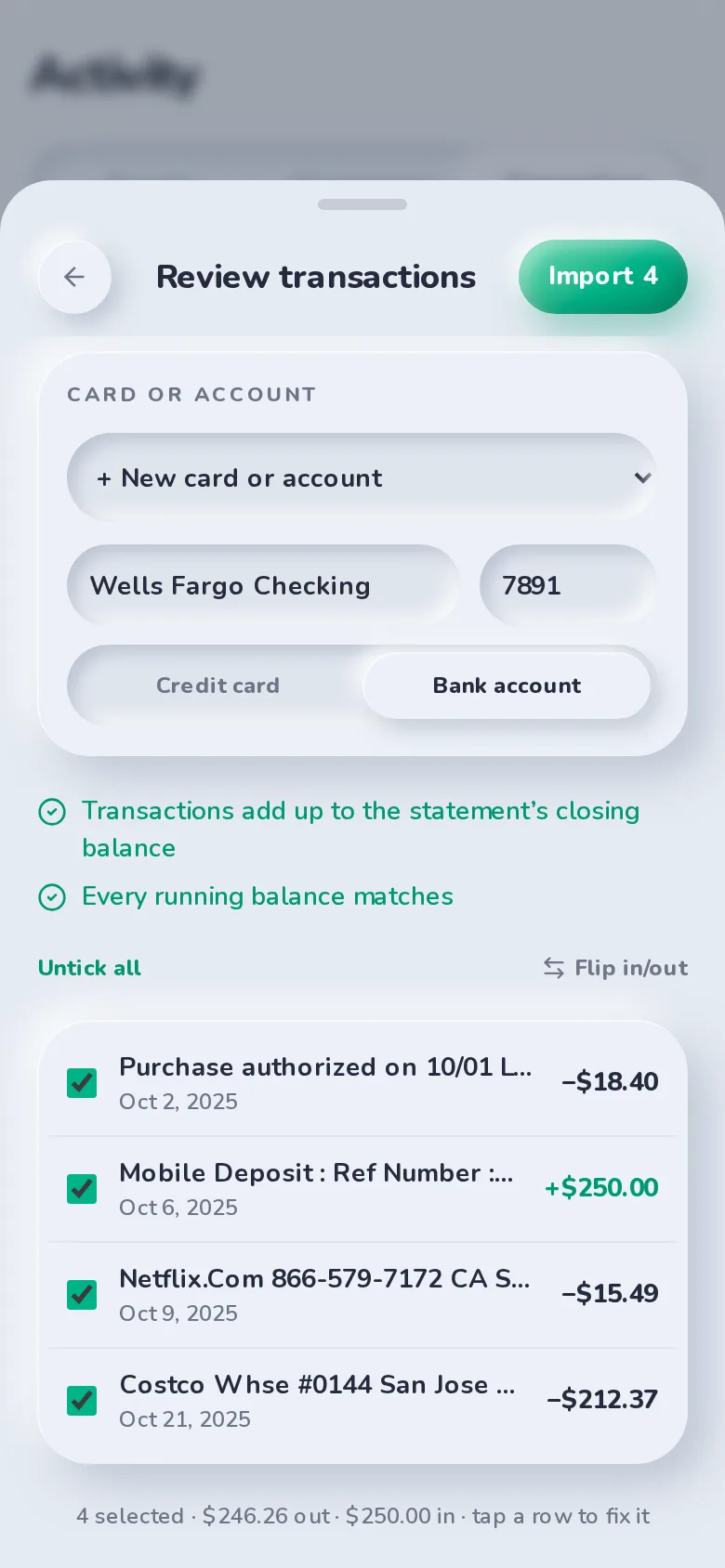
SplitBank reads the statement on your device and matches it to a card or account you’ve imported before, using its last four digits, or creates a new one. Password-protected PDFs work too; the password is only used to open the file.
Checked before anything is saved
When a statement shows a closing balance or running balances, SplitBank checks the transactions add up to them. You see every row first, can fix or untick any of them, and importing the same statement twice never creates duplicates.
Split it, or don’t
Every transaction is either split, marked “not splitting”, or still waiting for you, so it’s easy to see what’s left to sort out after a trip.
FAQ
Statement import: common questions
No. The file is read on your device and never uploaded or stored. Only the transactions you choose to import are saved: date, description, amount, and the card or account name and last four digits.
No. Download the statement from your bank’s website or app, then upload it here. If a PDF reads oddly, the CSV or QFX download is the most reliable.
Related
Receipt scanning
Photo in, itemized split out, with tax and tip shared fairly.
Learn more about receipt scanningFlexible splits
Equal, exact, percentage, shares or adjustments — with live per-person totals.
Learn more about flexible splitsInsights & export
Charts by category and month, totals, activity and CSV export.
Learn more about insights & export
Start splitting in under a minute
Free to use, with no subscription or credit card. Invite your group and add your first expense today.